

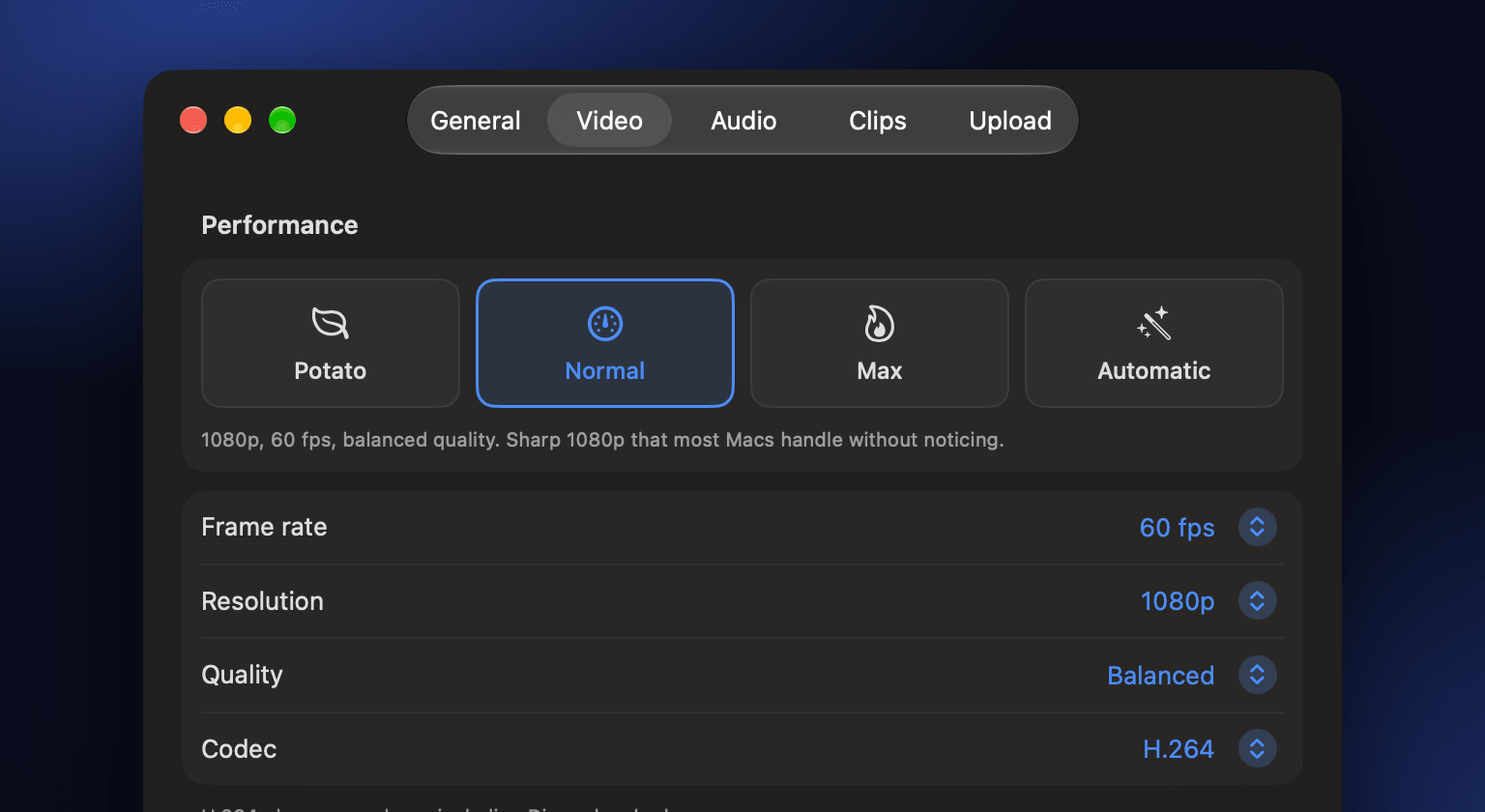
Light on any Mac
Encode using your Mac’s media engine to ensure that your game retains its frames. Choose a starting point of either Potato, Normal or Max. Manually change your frame rate, resolution, quality and codec.
CaptureMac will record the last few minutes from your game, application or window. Just hit your hotkey, and you have a clip.
Open the Terminal app on your Mac, and paste this command in.
curl -fsSL https://raw.githubusercontent.com/whoisjonah/CaptureMac/main/install.sh | bashCaptureMac will record what you’re doing (game, app or window) in a rolling buffer of between 15 seconds to 10 minutes.
When you hit your hotkey, you’ll get a video and audio clip. You can then choose to edit, copy or upload by clicking on the pop-up. If you need the full session, you can start a full recording.
Edit your video. Export the right size or upload to your own R2 bucket. Then just copy the link and paste anywhere.
Encode using your Mac’s media engine to ensure that your game retains its frames. Choose a starting point of either Potato, Normal or Max. Manually change your frame rate, resolution, quality and codec.
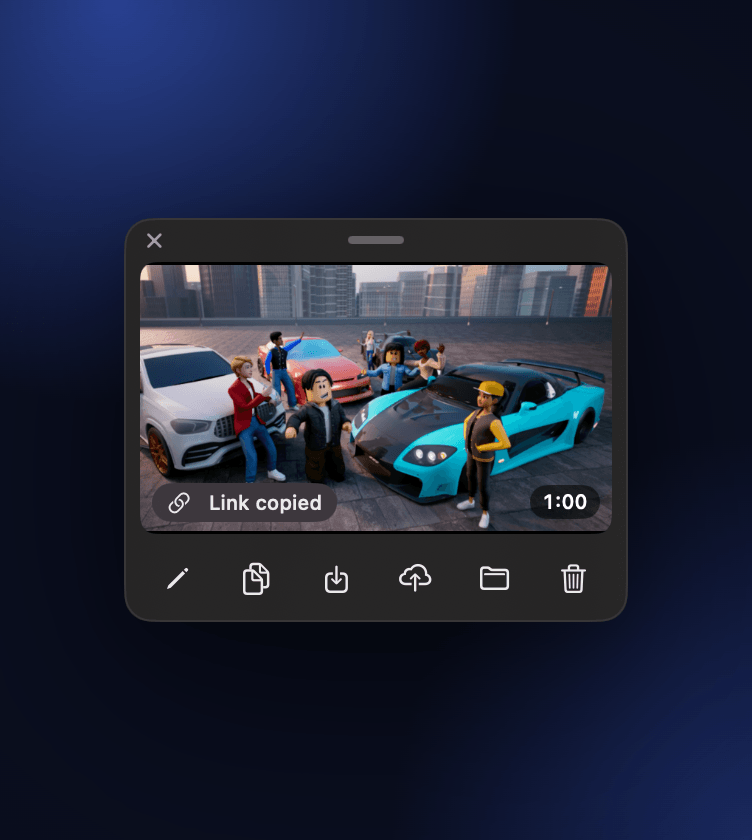
Upload to your Cloudflare R2 bucket. Paste the link into your clipboard.
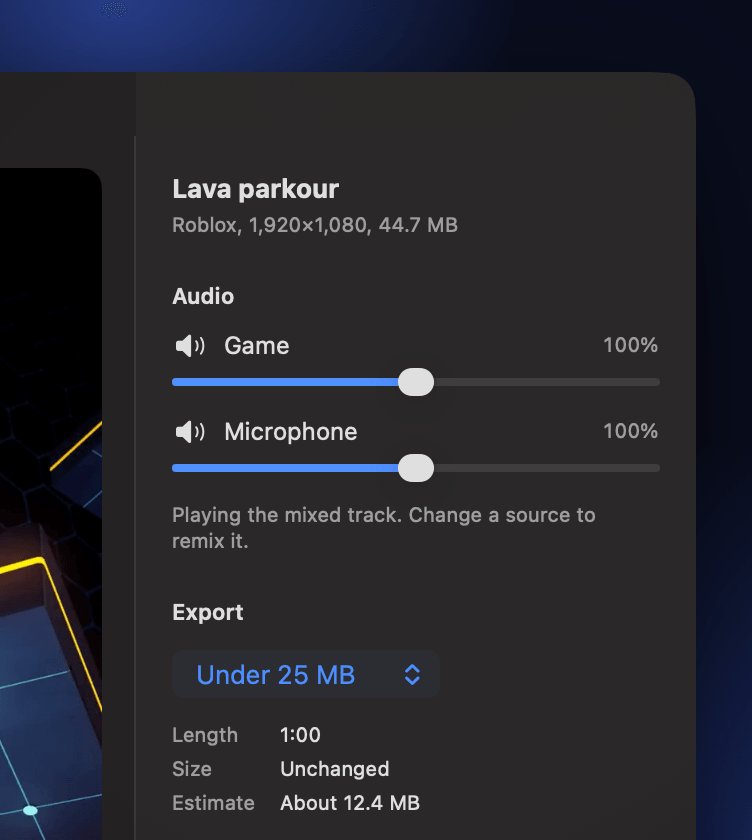
Separate your game audio and mic onto separate tracks.
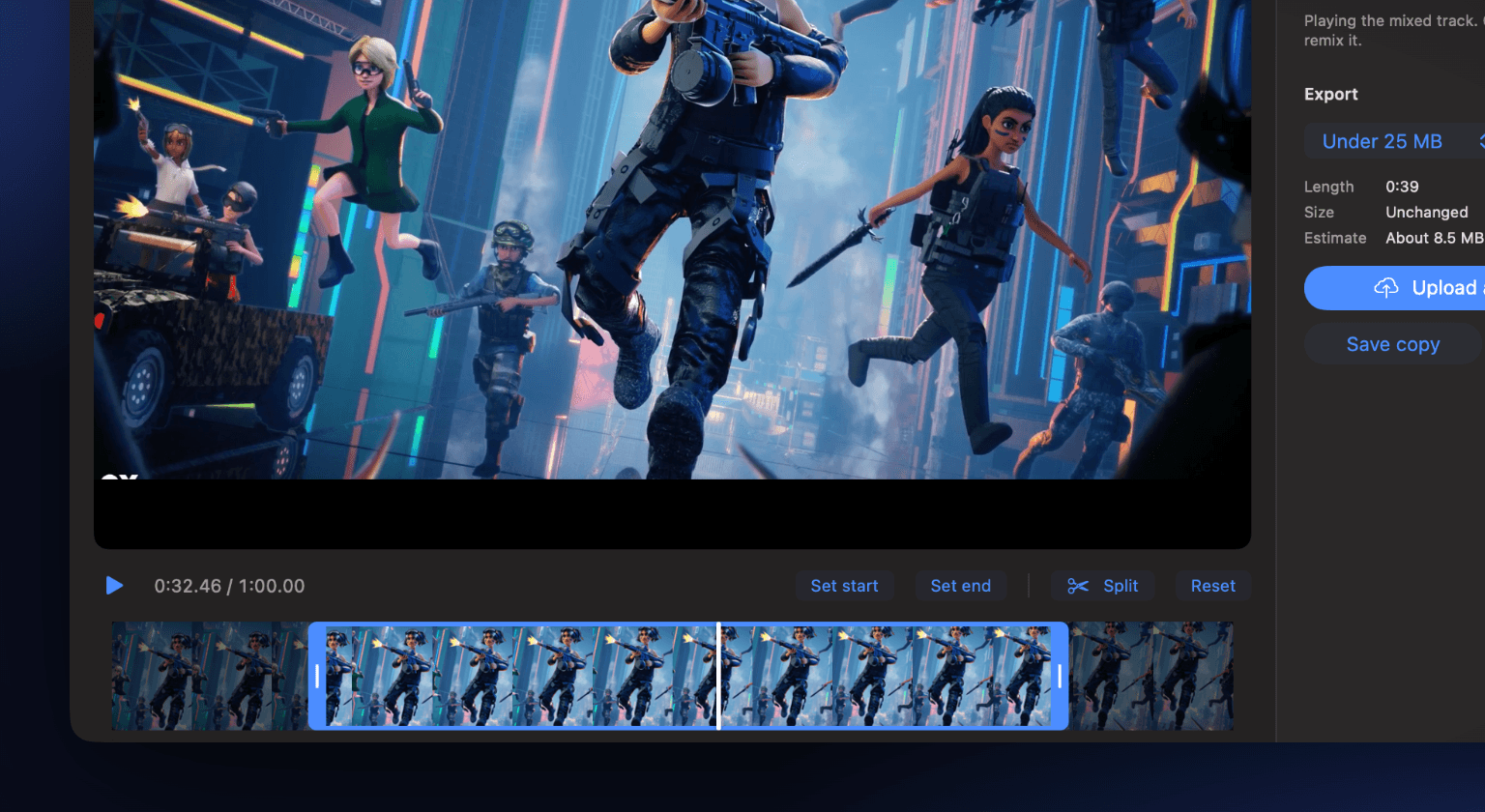
Split the audio, changing the start and end time. Slow parts can be split and balanced. Export the original file, or reduce to 10/25/50/100MB.
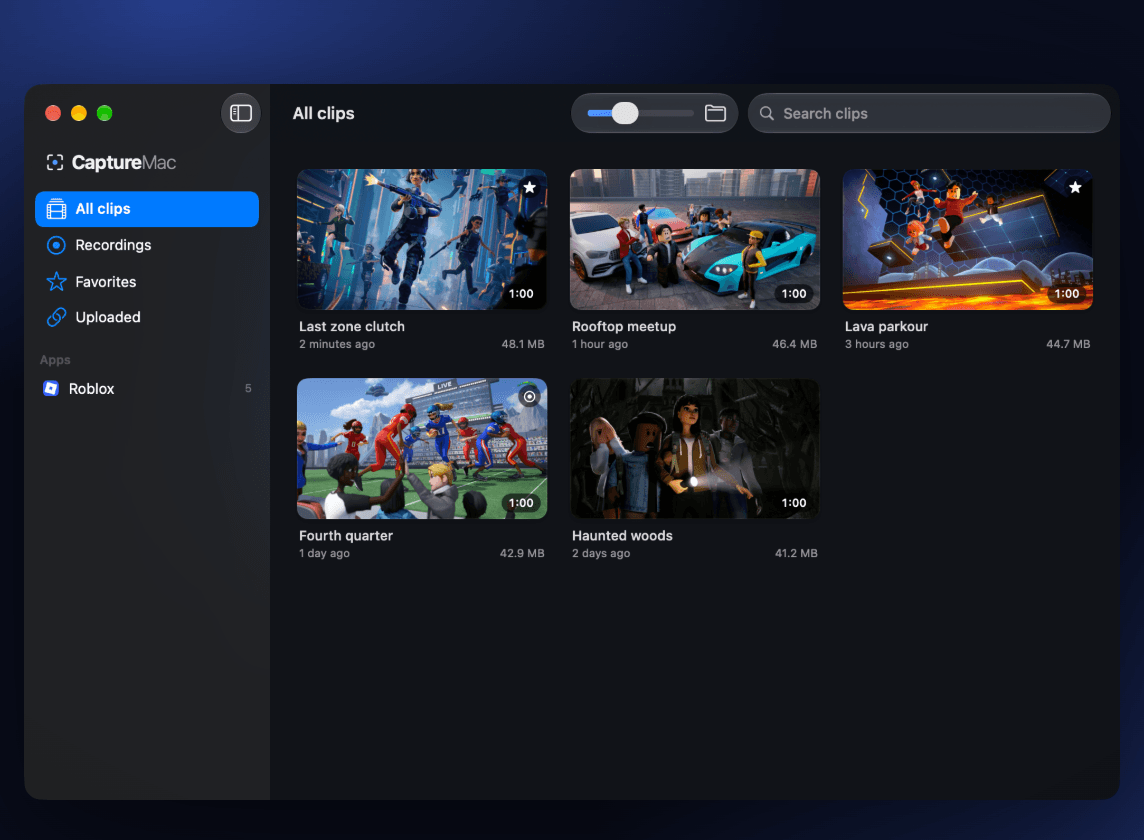
Browse apps, star the best ones and view all recordings in your library.
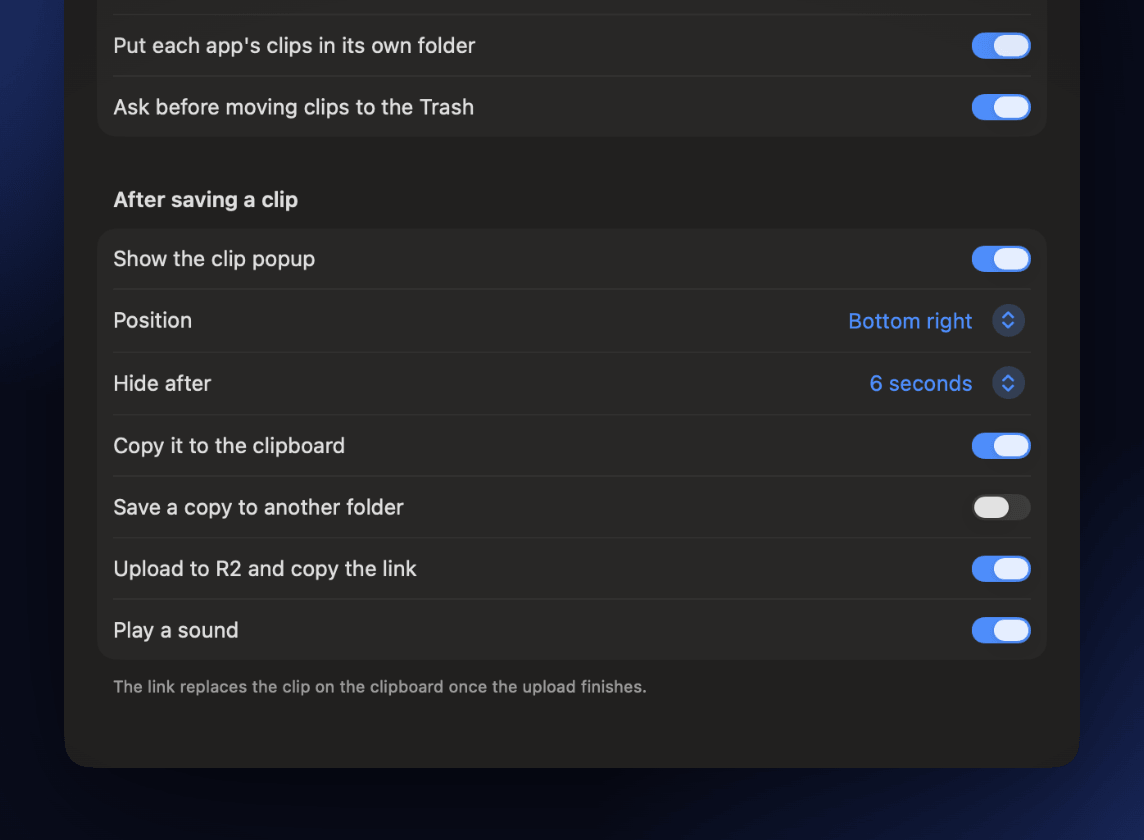
All shortcuts, how long the recording plays for, where the popup appears and what happens when you save.